If you want to use koding.io as wordpress plugin developer with tests (executed by phpunit) you can follow this guide.
This guide illustrates how the test environment is set up on koding.io. You should already familiar with wordpress & testing to understand the tutorial.
Install WordPress on your koding.io vm:
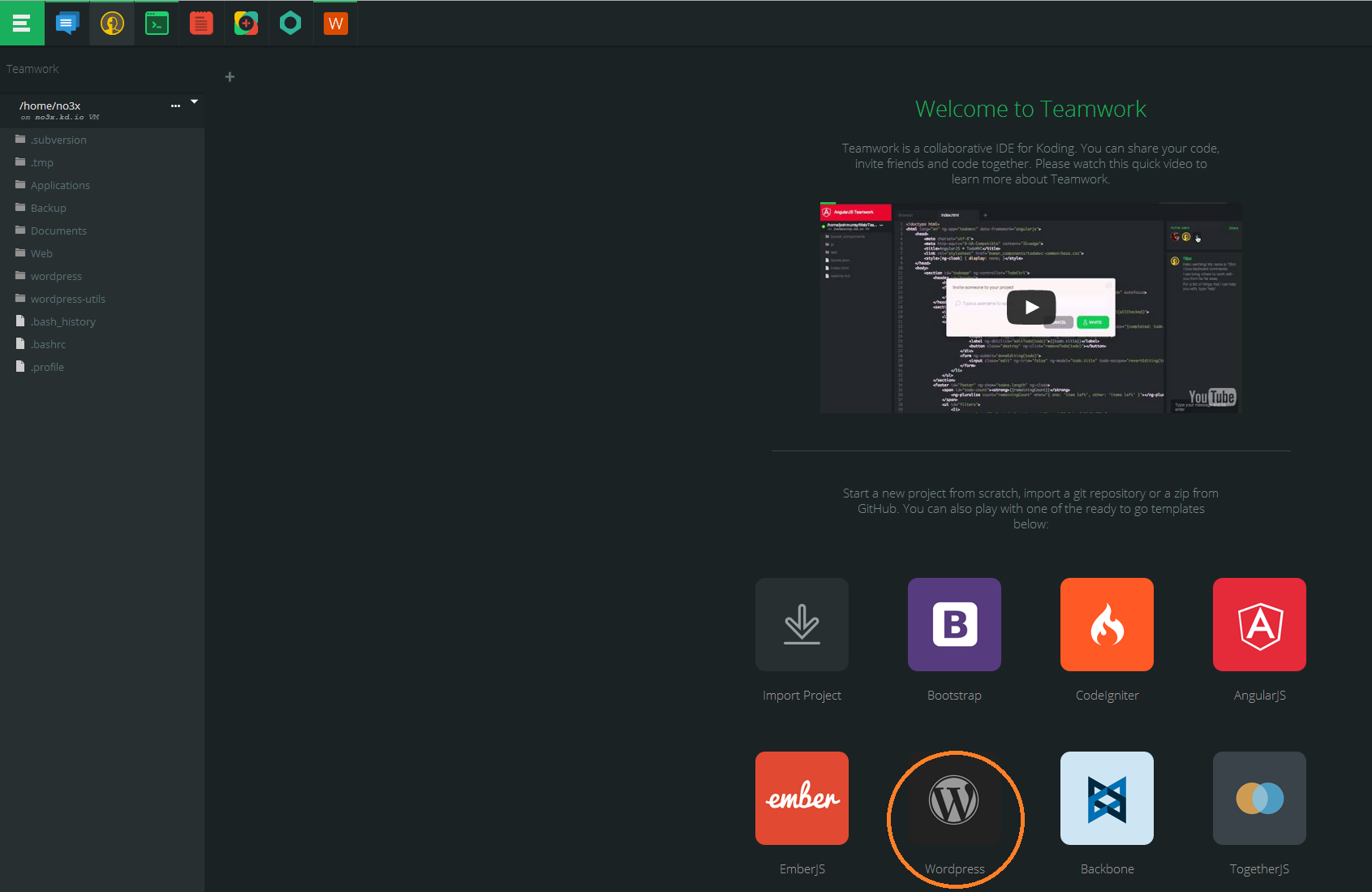
Install wordpress on koding.io
Follow the instructions to complete the installation.
Now that wordpress is installed we will use it as test environment.
copy/clone or check out your wordpress plugin as usually to ~/Web/wordpress/wp-content/plugins/
At next just merge from the wp-cli sample plugin into you development plugin:
https://github.com/wp-cli/sample-plugin
At least you just need to merge the phpunit.xml (describes our test envionment) and the tests/ folder ( there is a bootstrap file that does the bootstrap.. & there is example test)
(we don’t need the bin directory. The script in it should be a good start point if you want to setup a fresh wordpress for each test run)
We start installing phpunit on our vm via terminal.
sudo apt-get install phpunit -y
We create a wordpress-utils which containts all stuff needed for testing.
mkdir ~/Web/wordpress-utils/
cd wordpress-utils/
We check out the includes for phpunit.
svn co --quiet http://develop.svn.wordpress.org/trunk/tests/phpunit/includes/
We check out the config for tests
wget -nv -O wp-tests-config.php http://develop.svn.wordpress.org/trunk/wp-tests-config-sample.php
Now we have to take over the database setting from our wordpress installation manually:
nano ~/Web/wordpress/wp-config.php
Copy the settings for
DB_NAME
DB_USER
DB_PASSWORD
DB_HOST
DB_CHARSET
DB_COLLATE
and $table_prefix
to our test config
nano ~/Web/wordpress-utils/wp-tests-config.php
In my case the wp-tests-config.php looks like this:
<?php

/* Path to the WordPress codebase you'd like to test. Add a backslash in the end. */
define( 'ABSPATH', '/home/no3x/Web/wordpress/' );

// Test with multisite enabled.
// Alternatively, use the tests/phpunit/multisite.xml configuration file.
// define( 'WP_TESTS_MULTISITE', true );

// Force known bugs to be run.
// Tests with an associated Trac ticket that is still open are normally skipped.
// define( 'WP_TESTS_FORCE_KNOWN_BUGS', true );

// Test with WordPress debug mode (default).
define( 'WP_DEBUG', true );

// ** MySQL settings ** //

// This configuration file will be used by the copy of WordPress being tested.
// wordpress/wp-config.php will be ignored.

// WARNING WARNING WARNING!
// These tests will DROP ALL TABLES in the database with the prefix named below.
// DO NOT use a production database or one that is shared with something else.

define( 'DB_NAME', 'wordpress_db' );
define( 'DB_USER', 'root' );
define( 'DB_PASSWORD', '' );
define( 'DB_HOST', 'localhost' );
define( 'DB_CHARSET', 'utf8' );
define( 'DB_COLLATE', '' );

$table_prefix  = 'wp_';   // Only numbers, letters, and underscores please!

define( 'WP_TESTS_DOMAIN', 'example.org' );
define( 'WP_TESTS_EMAIL', 'admin@example.org' );
define( 'WP_TESTS_TITLE', 'Test Blog' );

define( 'WP_PHP_BINARY', 'php' );

define( 'WPLANG', '' );
Also modify the first statement to:
define( 'ABSPATH', '/home/<yourUsername>/Web/wordpress/' );
Now we have to do a change in our plugin.
nano ~/Web/wordpress/wp-content/plugins/<YourPlugin>/tests/bootstrap.php
Change the $_tests_dir to
if ( !$_tests_dir ) $_tests_dir = '/home/<yourUsername>/Web/wordpress-utils/';
We can change the directory to our plugin now and let phpunit execute our test:
cd ~/Web/wordpress/wp-content/plugins/<yourPlugin>
phpunit
The output should be
Installing...
Running as single site... To run multisite, use -c tests/phpunit/multisite.xml
Not running ajax tests... To execute these, use --group ajax.
        PHPUnit 3.6.10 by Sebastian Bergmann.

Configuration read from /home/<yourUsername>/Web/wordpress/wp-content/plugins/<yourPlugin>/phpunit.xml

..

Time: 2 seconds, Memory: 23.00Mb

OK (1 tests, 1 assertions)
You can now write some more tests, write the code to pass the tests and check the results of the tests by executing phpunit in the root of your plugin.
Don’t hesitate to use the comments if you are struggling at some point.
For further information about koding and some pictures I suggest WordPress in the Cloud: How to Set Up a Development Site with Koding.
You might be interested in alternatives for koding.io.